
⚠️Not updated in over 2 years
Description
**What's new**
-> Added keyboard shortcut to capture current state - Default is Ctrl+Shift+1 to snap the screen but Chrome let's you manages these shortcuts here: chrome://extensions/shortcuts
-> Manifest v3 - behind the scenes google extension stuff
-> Few other bugs squashed
-> Export steps now write annotations too
Key Features:
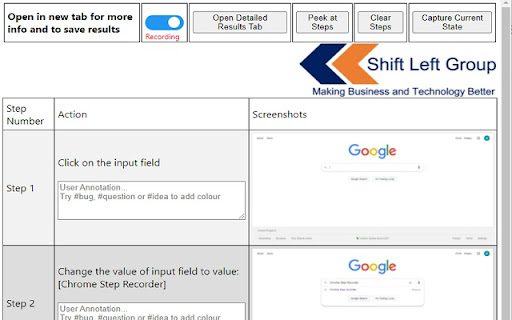
- Automatically record detailed user actions and screenshots from manual interaction with web pages.
- Captures events, object identifiers, URLs, titles, detailed page timings and screenshots.
- Once ready, view the detailed results, press ctrl+s and create a single, detailed flat file of test evidence of every action undertaken in the browser.
- Annotate your steps to add further detail and track questions, bugs or ideas
Why?
As a tester, I'm forever capturing test evidence for steps that are undertaken. This is especially tricky when doing exploratory testing and trying to recreate any issues.
This extension is the solution to creating highly detailed test evidence files with no effort.
Do your test, save the results web page and upload it to whichever management tool is used.
Use cases:
** Manual test execution evidence capture
** Exploratory test tracking
** SME/Business process/data capture - they do it, you can harvest their knowledge
** Story-booking the execution of automation (have the extension turned on while automation runs)
** Encourage non-testers to capture the best level of detail possible
Instructions:
1. Install the extension
2. Click the extension and open the popup (strongly recommend pinning the extension!)
3. Click the slider to turn on recording - the icon adds a red dot.
4. Create a new tab and do your test actions!
5. At any point, open the extension and press "Peek Steps" to see a subset of has been recorded.
6. For any checkpoints, open the popup and press "Capture Current State" to snap a pic of the application or press Ctrl+Shift+1 (shortcut changeable at chrome://extensions/shortcuts). This is especially useful for the final state of the application.
7. When complete, click the slider to stop recording (you can turn it on and off as many time as required) and click "Open Detailed Results Tab". On the detailed results tag you can annotate your steps. Type #bug, #question or #idea to add colour to field.
8. Review the steps, press ctrl+s and save the detailed results web page Or press ctrl+p to print to a PDF
9. Ready for the next test? - Open the popup and press Clear Steps and start recording again!
*The extension should not record password entries by filtering element 'type=password' - but please validate result files before saving.
Accessibility – we have used the Chrome Lighthouse accessibility tool to assess this extension and have achieved a score of 100/100. We are always considering accessibility as part of our digital experience. If you have any accessibility concerns please contact us via https://shiftleft.today/accessibility-statement


Reviews (1 cached)
★☆☆☆☆2025-08-01
Markus Tauscher
Does nothing in a vaadin ui running in an iframe. says it's recording, opened a new tab and started to take some steps in the app. Extension recorded nothinng.
Permissions (3)
Permissions
storageℹ Can store data locally in your browser tabsℹ Can see your open tabs and their URLs unlimitedStorage
Details
| Version | 0.45.28 |
| Updated | May 11, 2023 |
| Size | 107KiB |
| First Seen | Mar 31, 2026 |
Popular in developer

GoFullPage - Full Page Screen Capture
by GoFullPage
10M
★ 4.89
developer
10M
★ 4.89
developer

TouchEn PC보안 확장
by 라온시큐어
8M
★ 1.33
developer
8M
★ 1.33
developer

React Developer Tools
by Meta
5M
★ 3.95
developer
5M
★ 3.95
developer

Meta Pixel Helper
by Meta
4M
★ 3.91
developer
4M
★ 3.91
developer

ColorZilla
by colorzilla.com
4M
★ 4.59
developer
4M
★ 4.59
developer
Popular Extensions

Adobe Acrobat: PDF edit, convert, sign tools
by Adobe Inc.
331M
★ 4.40
workflow
331M
★ 4.40
workflow

AdBlock — block ads across the web
by AdBlock
63M
★ 4.48
workflow
63M
★ 4.48
workflow

迅雷下载支持
by Shenzhen Xunlei Network Technology Co., Ltd.
59M
★ 2.77
workflow
59M
★ 2.77
workflow

Grammarly: AI Writing Assistant and Grammar Checker App
by Grammarly
42M
★ 4.50
communication
42M
★ 4.50
communication

Adblock Plus - free ad blocker
by eyeo GmbH
41M
★ 4.39
workflow
41M
★ 4.39
workflow