
⚠️Not updated in over 2 years
Description
- Here comes several ways to turn on 「Pirate」.
1. Turn on contextMenu & choose 「Pirate」.
2. Press shortcut 「 Pirate 」 which right next to url bar.
- How to use 「Pirate」?
1. Press contextMenu & choose 「Pirate」to turn it on.
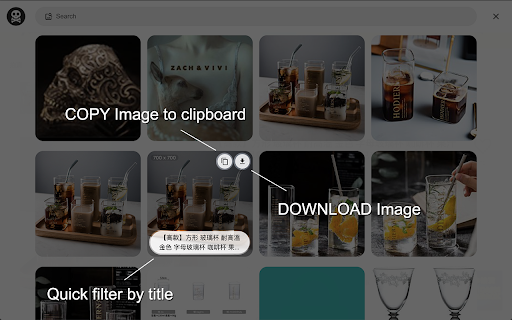
2. Pick image you like to 「 COPY 」or 「 DOWNLOAD 」it.
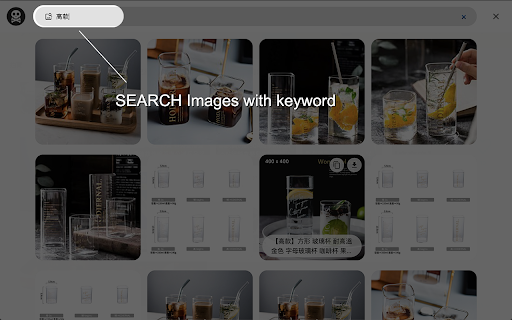
3. You could also use search function to find images you like quickly.
- Keyboard shortcut
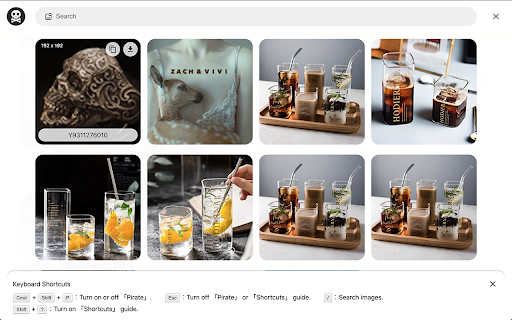
1.「 Cmd + Shift + O」︰Turn on or off 「Pirate」.
2.「 Esc 」︰Turn off 「Pirate」 or 「Shortcuts」 guide.
3.「 / 」︰Search images.
4.「 Tab 」︰Switch content.
5.「 Shift + ? 」Turn on 「Shortcuts」 guide.
Enjoy it.
- Change Log:
1.0.7:
a. Fixed keyboard shortcut issue.
1.0.6:
a. Migrate to MV3.
b. Performance enhancement.
1.0.5:
a. Dark mode support.
1.0.4:
a. Refactor card structure.
1.0.3:
a. Accessibility & performance enhancement.
1.0.2:
a. Masonry layout display bug fixed.
1.0.1:
a. Add keyboard shortcuts guide.
b. Ally enhancement.
c. Add scroll to top function.
d. Fetch more images from meta / video / touch-icon / startup-image.
e. Add multi keyword search. (use space as separate sign)


Reviews
Loading reviews...
Permissions (2)
Permissions
contextMenusℹ Can add items to the right-click menu downloadsℹ Can manage and monitor downloads
Details
| Version | 1.0.7 |
| Updated | Dec 5, 2021 |
| Size | 75.8KiB |
| First Seen | Mar 30, 2026 |
More by Paul Li

Crop It!
by Paul Li
9K
★ 2.77
workflow
9K
★ 2.77
workflow

mei's lens
by Paul Li
2K
★ 1.80
tools
2K
★ 1.80
tools

Read It!
by Paul Li
140
★ 3.67
workflow
140
★ 3.67
workflow

Yahoo奇摩拍賣 - SnR
by Paul Li
61
★ 0.00
workflow
61
★ 0.00
workflow

mei's Handy Tool
by Paul Li
3
★ 5.00
workflow
3
★ 5.00
workflow
Popular in workflow

Adobe Acrobat: PDF edit, convert, sign tools
by Adobe Inc.
331M
★ 4.40
workflow
331M
★ 4.40
workflow

AdBlock — block ads across the web
by AdBlock
62M
★ 4.48
workflow
62M
★ 4.48
workflow

迅雷下载支持
by Shenzhen Xunlei Network Technology Co., Ltd.
59M
★ 2.77
workflow
59M
★ 2.77
workflow

Adblock Plus - free ad blocker
by eyeo GmbH
41M
★ 4.39
workflow
41M
★ 4.39
workflow

Chrome Remote Desktop
by Chrome Remote Desktop Release Managers
39M
★ 3.14
workflow
39M
★ 3.14
workflow
Popular Extensions
Adobe Acrobat: PDF edit, convert, sign tools
by Adobe Inc.
331M
★ 4.40
workflow
331M
★ 4.40
workflow
AdBlock — block ads across the web
by AdBlock
62M
★ 4.48
workflow
62M
★ 4.48
workflow
迅雷下载支持
by Shenzhen Xunlei Network Technology Co., Ltd.
59M
★ 2.77
workflow
59M
★ 2.77
workflow

Grammarly: AI Writing Assistant and Grammar Checker App
by Grammarly
42M
★ 4.50
communication
42M
★ 4.50
communication
Adblock Plus - free ad blocker
by eyeo GmbH
41M
★ 4.39
workflow
41M
★ 4.39
workflow