
Description
Please check https://github.com/willbchang/chrome-read-later#readme for a better document. This page will automatically show up after installation.
Features
• Reading List
• Reading Progress: It saves the reading progress of current page.
• Sync in Cloud: Sync across Chrome browsers with one google account.
• Local History: Save the reading list history locally.
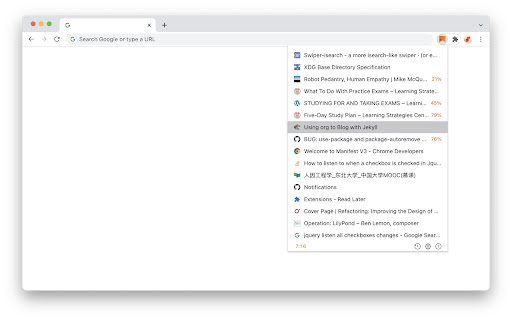
• Status Bar
• Row Number : Total Count
• History Icon: Click to on/off history mode.
• Export Icon: Click to export reading list to JSONL text/file.
• Import Icon: Click to import reading list from JSONL text/file.
• Options Icon: Click to open options page.
• Question Icon: Click to open the documentation & feedback page.
Usages
| Mac Keyboard | Windows Keyboard |
|------------------------+--------------------------------|
| Control | Ctrl |
| Option | Alt |
| Command | Windows |
| Delete | Backspace |
• Mouse Click
• Current Page:
• Right Click current page and select Read Later in context menus to save page info and close current tab.
• Right Click a link and select Read Later in context menus to save the target link info.
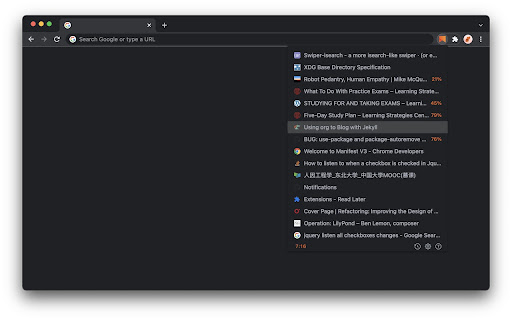
• Click the Read Later icon to open the Reading List(Popup Window).
• Reading List(Popup Window):
• Mouse Hover: show full title and link.
• Mouse Hover(image): show the delete icon.
• Click: open link in current tab.
• Click(image): delete current link.
• Alt + Click: open link in a new tab.
• Command + Click: open link in a new tab and stay in current tab, and keep reading list.
• Keyboard Shortcuts
• Current Page:
• Alt + Shift + S: Save to reading list.
• Alt + Shift + Z: Zoom In/Out reading list.
If you pressed the shortcuts and it didn't work, please enter chrome://extensions/shortcuts in your address bar.
Find Read Later and set the shortcuts(resolve the keyboard shortcuts conflicts)
• Reading List(Popup Window):
• ↑: move to previous link.
• ↓: move to next link.
• Delete: delete current link.
• Command + z: restore a deletion.
• Enter: open select link in current tab.
• Alt + Enter: update link in a new tab.
• Command + Enter: open link in a new tab and stay in current tab, and keep reading list.
• For Vim user(Popup Window):
• Esc: close reading list.
• j: move to next link.
• k: move to previous link.
• gg: move to the first link.
• G: move to the last link.
• o: open select link in current tab.
• O: open link in a new tab and stay in current tab with reading list stay.
• dd: delete current link.
• u: restore a deletion.
• yy: copy current link.
• ,: open option page.
• ?: open documentation & feedback site.
Reviews
Loading reviews...
Permissions (4)
Permissions
contextMenusℹ Can add items to the right-click menu favicon storageℹ Can store data locally in your browser tabsℹ Can see your open tabs and their URLs
Details
| Version | 9.1.0 |
| Updated | Dec 15, 2025 |
| Size | 136KiB |
| First Seen | Apr 1, 2026 |
Popular in workflow

Adobe Acrobat: PDF edit, convert, sign tools
by Adobe Inc.
331M
★ 4.40
workflow
331M
★ 4.40
workflow

AdBlock — block ads across the web
by AdBlock
62M
★ 4.48
workflow
62M
★ 4.48
workflow

迅雷下载支持
by Shenzhen Xunlei Network Technology Co., Ltd.
59M
★ 2.77
workflow
59M
★ 2.77
workflow

Adblock Plus - free ad blocker
by eyeo GmbH
41M
★ 4.39
workflow
41M
★ 4.39
workflow

Chrome Remote Desktop
by Chrome Remote Desktop Release Managers
39M
★ 3.14
workflow
39M
★ 3.14
workflow
Popular Extensions
Adobe Acrobat: PDF edit, convert, sign tools
by Adobe Inc.
331M
★ 4.40
workflow
331M
★ 4.40
workflow
AdBlock — block ads across the web
by AdBlock
62M
★ 4.48
workflow
62M
★ 4.48
workflow
迅雷下载支持
by Shenzhen Xunlei Network Technology Co., Ltd.
59M
★ 2.77
workflow
59M
★ 2.77
workflow

Grammarly: AI Writing Assistant and Grammar Checker App
by Grammarly
42M
★ 4.50
communication
42M
★ 4.50
communication
Adblock Plus - free ad blocker
by eyeo GmbH
41M
★ 4.39
workflow
41M
★ 4.39
workflow